


Everyday workflows
Start a stack, connect to it, read its logs, run a task, change doze.hcl and stop for the day, in the app or in a terminal.
You’ll be able to do a normal day’s work with doze: bring a stack up, reach its services from your code, read what they print, change the config, and stop.
Every step works in the app and in a terminal; the app runs the same commands. The examples use Larder, a made-up grocery service from doze-examples.
Start the stack
Section titled “Start the stack”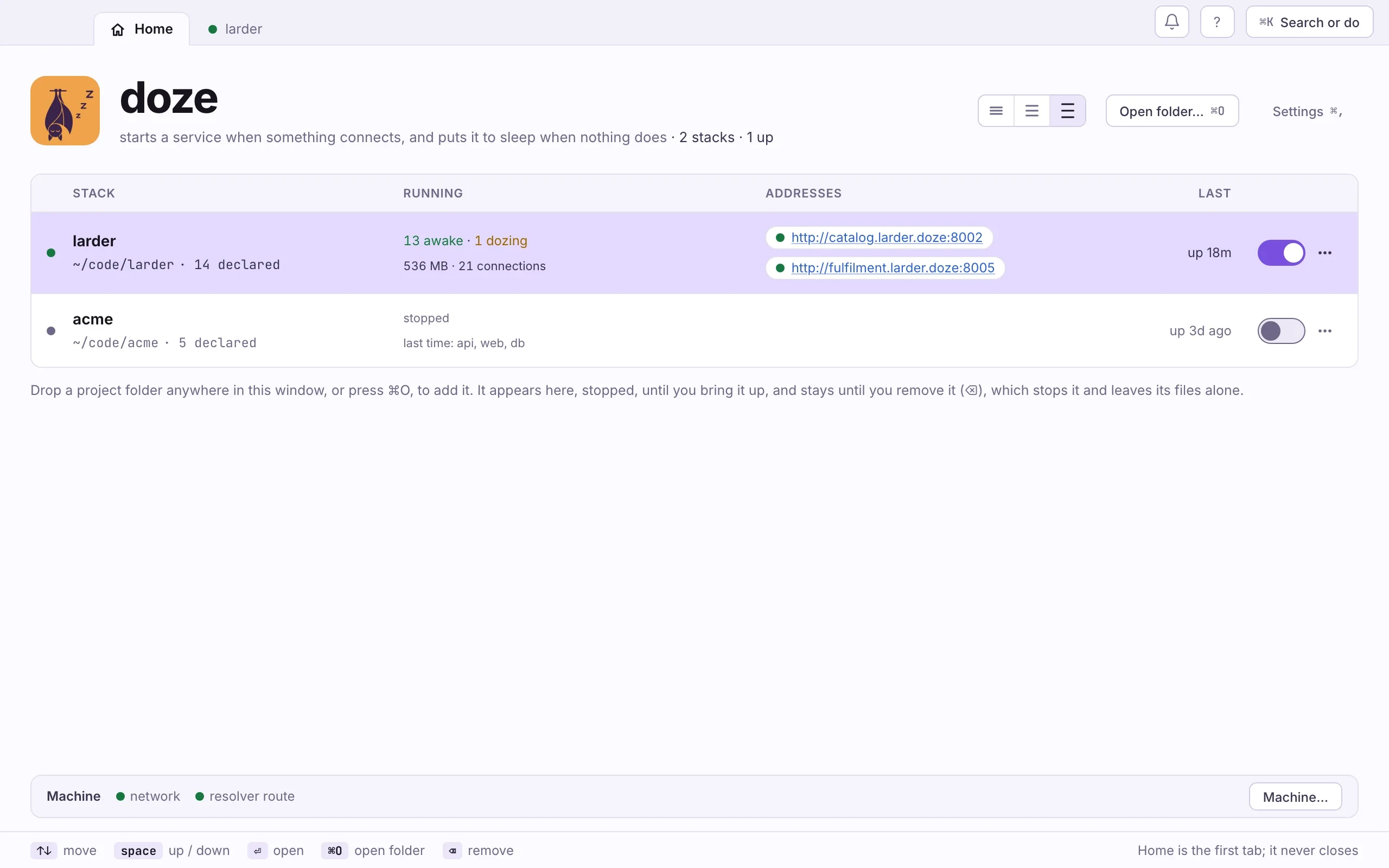
- Open doze. From Applications, or type
dozein a terminal. - Flip the stack’s switch on. It starts what was started last time, or everything the first time.
- For something else, open the
…menu: Start everything, or, while the stack is down, Choose what starts… to tick the apps you will work on. What they need comes too.
doze up # asks whether to start the same set as last timedoze up --last # the same set, without askingdoze up --all # everything, without askingdoze up storefront gateway # these two and what they needdoze up returns when every service it started is ready. Add -f to follow
the logs after; Ctrl+C stops following, not the stack.
Services you did not start are not off. Most sleep until something connects, then wake. See Sleep and wake.
See what is running
Section titled “See what is running”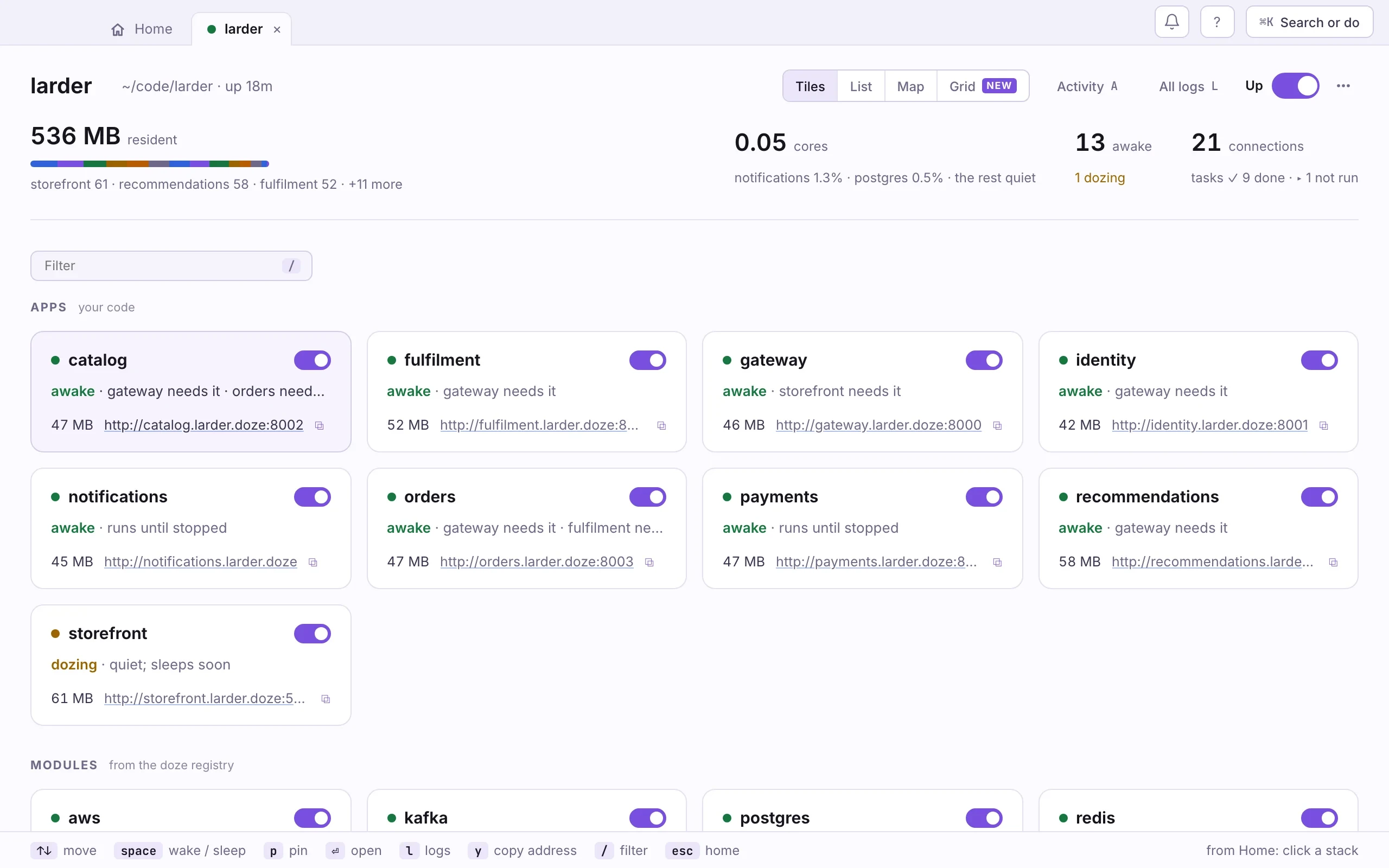
- Open the stack from the Library (⏎ on its row).
- Read the states. Each service is awake, dozing (running, nobody connected, counting down to sleep), waking, asleep, crashing (it exited and a restart is due), failed, or off (you switched it off). A task is done, failed or not run.
- Press ⏎ on a service to open it: why it is awake, its memory and CPU, and its recent wakes.
doze status # one table: state, address, connections, memory, CPUdoze status -w # the same, redrawn as things changedoze status --graph # who waits on whomConnect from your code and your tools
Section titled “Connect from your code and your tools”An app block gets its connection strings from its own env, so an app doze
runs needs nothing more. For a program you start yourself, such as a test
runner or psql:
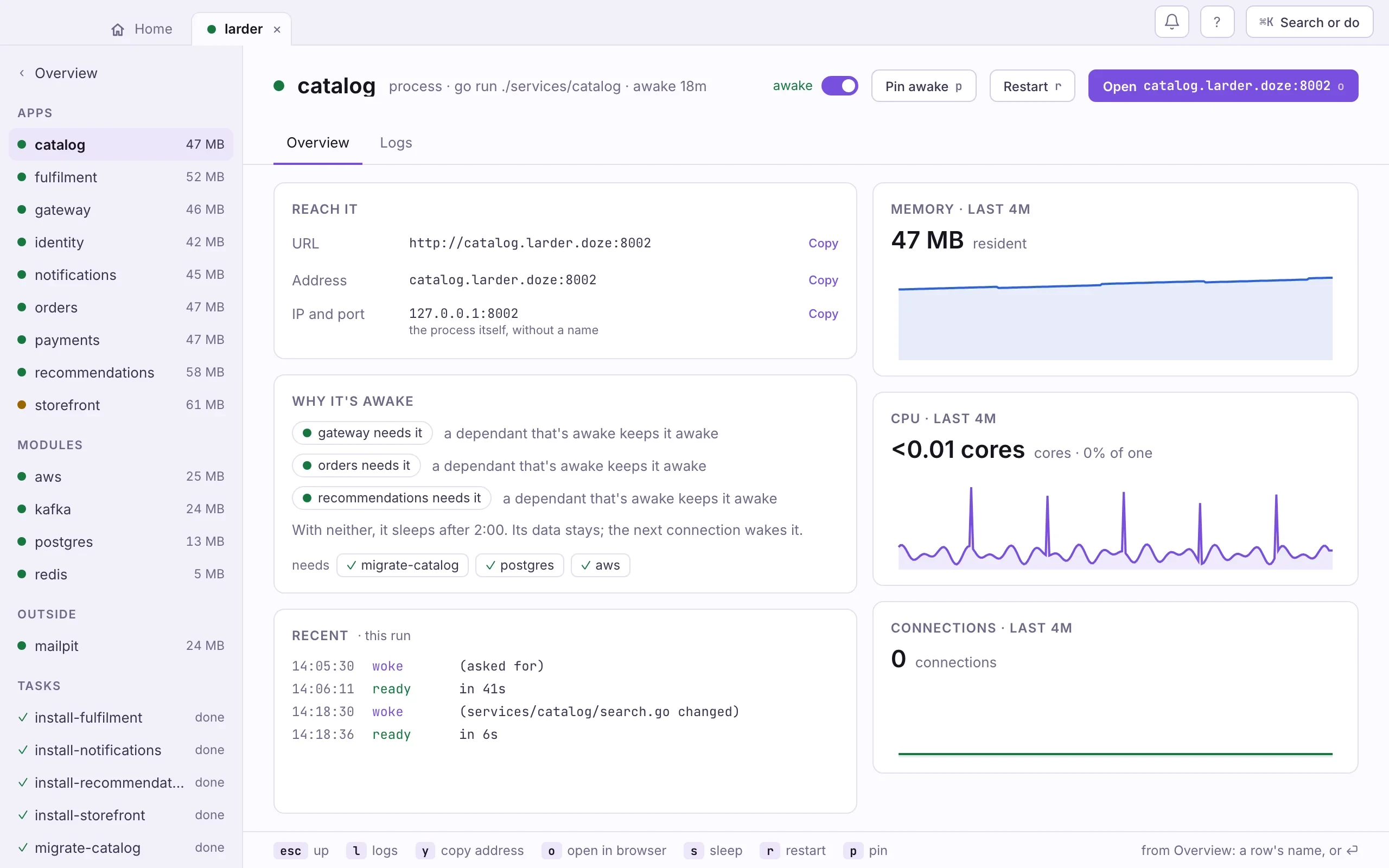
- Open the service.
- Press Copy on the line you want, or y for the address.
A module’s Connect card also shows the same URL for Node, Python, Go,
a shell,
.envandpsql.
psql "$(doze url postgres)" # one service's connection lineeval "$(doze env)" # export DATABASE_URL, REDIS_URL, … into this shelldoze env --dotenv > .env # the same as KEY=value linesdoze run --env -- go test ./... # run one command with those variables setdoze url and doze env read the config, so the stack need not be up;
connecting is what wakes a service. doze run without --env adds nothing
to the command’s environment.
Read the logs
Section titled “Read the logs”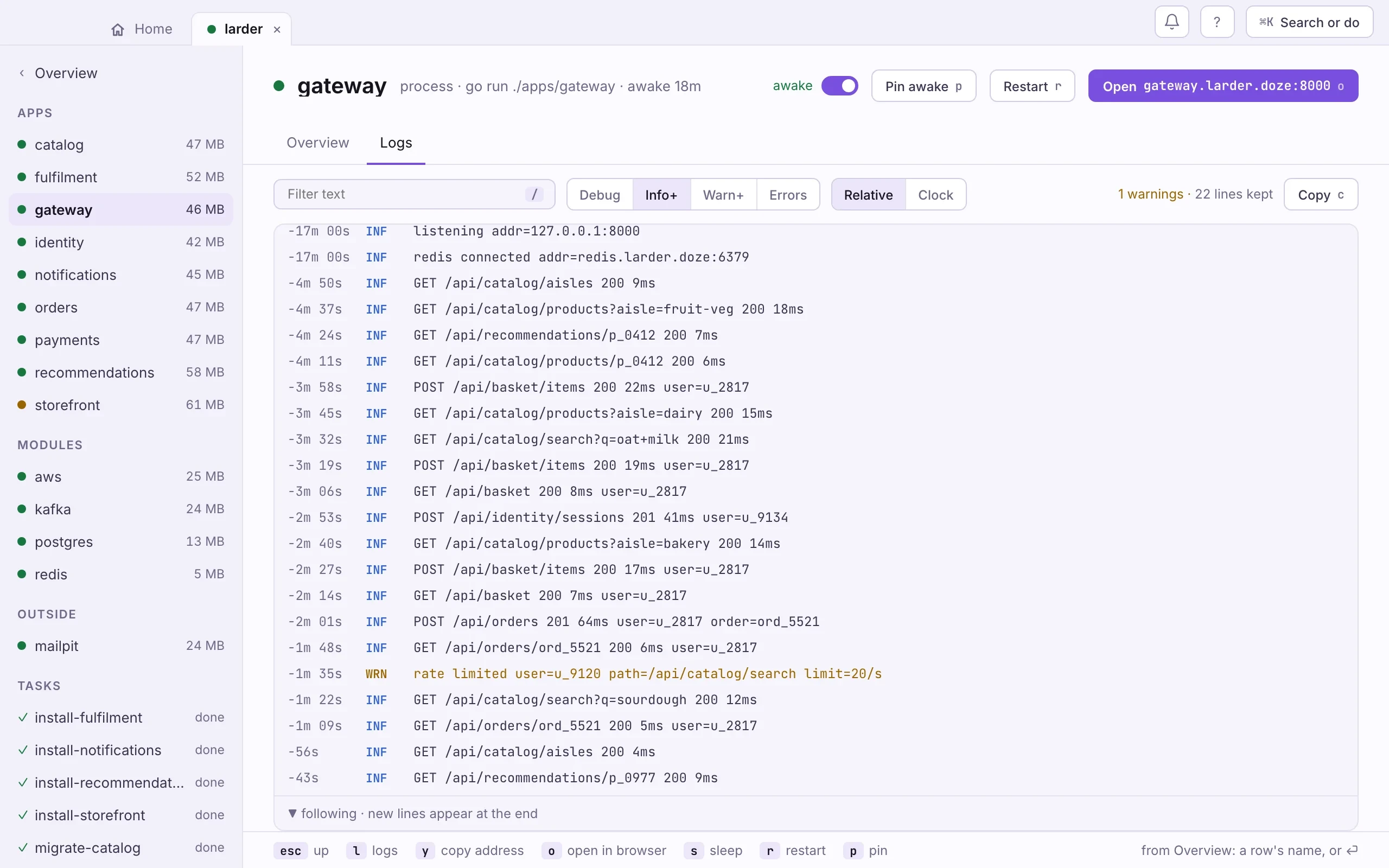
- Open the service and press l for its Logs tab.
- For the whole stack, press L on the stack’s page, or ⌘L.
doze logs gateway # the newest rundoze logs gateway --run -1 # the run before it: what it said before it dieddoze logs gateway --since 10m # the last ten minutesdoze logs -f gateway orders # follow two servicesdoze logs # every service, merged by timeLogs are kept on disk per run, so this works for a service that is asleep or
crashed, and with the stack down. -f needs the stack up.
Run a task
Section titled “Run a task”Tasks such as migrations run by themselves before the apps that list them in
after, and again when their inputs change. To run one now:
- Open the stack and pick the task under Tasks in the sidebar.
- Press Run (or ⏎). The output appears on the page; the runs are kept beside it.
doze task migrate-catalog # run it now, whatever its statedoze task # every task and how it last ranKeep one awake, put one aside
Section titled “Keep one awake, put one aside”- Pin a service awake: open it and press Pin awake (p). It stays up with nobody connected until you unpin it or the stack stops.
- Put one to sleep now: Sleep (s). Its data stays.
- Take one out of this run: flip its row’s switch off. Nothing wakes it, not even a connection, until you switch it on again.
doze pin postgres # keep it awake; doze pin postgres --off to undodoze sleep postgres # sleep now; the next connection wakes itdoze wake postgres # wake now, with what it needsdoze off storefront # stop it and keep it stoppeddoze on storefront # back in the run; wakes on its next connectiondoze restart gateway # stop and start againChange doze.hcl
Section titled “Change doze.hcl”- Edit the file.
doze lintchecks it without touching anything, anddoze fmtlays it out. - A running stack keeps the file it started with. The app says so on the stack’s page (“doze.hcl changed 2m ago, after the stack read it”), and a file that does not load is shown with its line.
- To apply it, restart the stack: Restart larder in the
…menu, ordoze downthendoze up.
When you only changed structure inside a module (a new role, bucket, queue or
topic), doze sync applies it to the running stack. doze sync --dry-run
shows what it would do first; sync also drops structure you removed.
Start a service’s data again
Section titled “Start a service’s data again”doze reset postgresreset stops the service and deletes its data; the next wake sets it up
fresh from the config. It asks first and cannot be undone.
Stop for the day
Section titled “Stop for the day”- Flip the stack’s switch off on the Library. Every service stops, and so does the stack’s background daemon.
- Close the window if you like. The bat stays in the menu bar; quitting the app leaves stacks running.
doze downNext time, doze up offers what you had running.
When something is wrong
Section titled “When something is wrong”doze doctor checks the machine setup and the config and says what to fix.
In the app the same report is under Settings › Machine. See
Troubleshooting, and the
CLI reference for every command and flag.