



Library and stacks
Home, the list of every stack on this machine, and how to add, start, stop and remove one.
Find every stack on this machine in one place, and start, stop or remove one.
The app is one window for every stack, and a bat in the menu bar that stays when the window closes. Its first tab is Home, the library of stacks. Home never closes. Each stack you open gets a tab beside it.
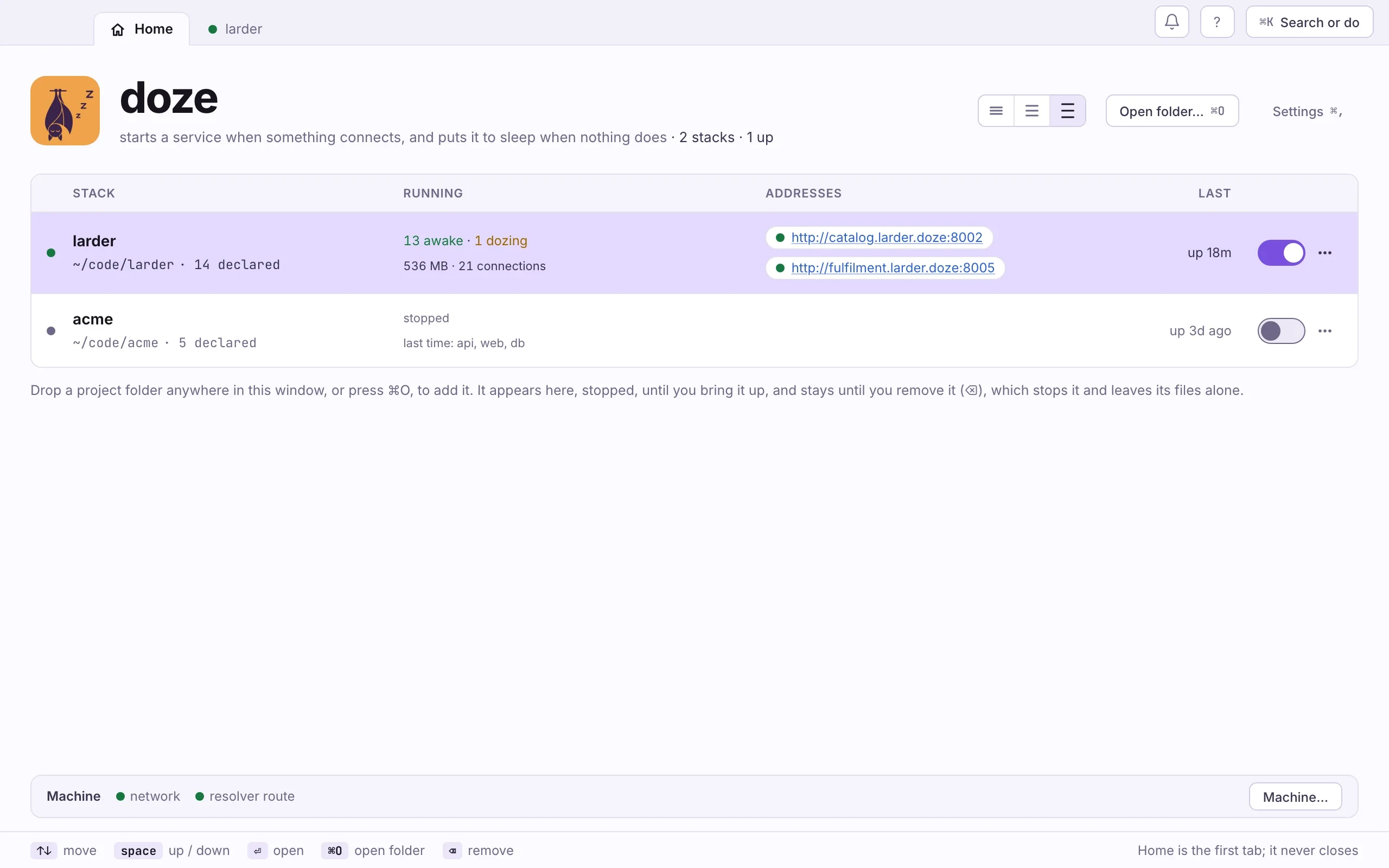
- A stack. Its name, its folder, and how many services it declares.
- Running. How many are awake and dozing, the memory they use, and open connections. A stopped stack says what started last time.
- Addresses. Its apps' URLs, a click away.
- The switch. On brings the stack up as last time; off brings it down.
- ⋯ Start everything, choose what starts, restart, edit doze.hcl, show in Finder, remove.
- Machine. Whether names are set up here, with Set up when they are not.
Running stacks come first. Double-click a row, or select it and press ⏎, to open the stack in its own tab.
Bare doze in a terminal opens the app too, on the stack of the folder you are
in. Over SSH, with no screen, doze prints the status table instead.
Add a stack
Section titled “Add a stack”- Drop a project folder anywhere on the window, or press ⌘O and pick it.
- A folder with a
doze.hclappears on Home, stopped. Opening a folder never starts it. - A folder without one opens on what doze found in it and the three ways to start. See Bring your own repo.
doze open ~/code/larder # a tab for the project; the current folder by defaultStart and stop a stack
Section titled “Start and stop a stack”- Flip the stack’s switch on. It starts what was running last time.
- For something else, open the ⋯ menu. Start everything starts all declared services. Choose what starts… (c) opens a sheet where you tick the apps you will work on; what they need comes too.
- Flip the switch off to bring the stack down. Data stays.
On a stopped stack’s page, turning one service on starts the stack with just that service and what it needs.
doze up # asks to start the same as last time, when that was less than everythingdoze up --last # what started last time, without askingdoze up --all # everything, without askingdoze up gateway # gateway and what it needsdoze down # sleep everything and stop the stack's daemonRemove a stack
Section titled “Remove a stack”Select it and press ⌫, or choose Remove from doze… in its ⋯
menu. A running stack is stopped first. Its folder, its doze.hcl and its data
all stay; open the folder again to bring it back.
Quitting
Section titled “Quitting”Quitting the app (⌘Q, or Quit doze in the menu bar) leaves every
stack running. The app shows the stacks; their daemons run them. Closing the
window (⌘W) leaves the bat in the menu bar. The app writes its own
log to ~/.doze/desk/app.log.
Links into the app
Section titled “Links into the app”doze://larder opens the larder stack, doze://larder/postgres its postgres
service, and doze://library and doze://settings those pages. Put one in a
README or a runbook.
- ↑ ↓ j k
- move
- space
- bring the stack up or down
- ⏎
- open it
- ⌫
- remove from doze; files stay
- ⌘O
- open a folder
- ⌘0
- Home
- ⌘1–9
- a stack's tab
Every key is listed under ⌘K and keys.
Next: Tiles, List, Map and Grid.